FAQ
Getting started
What do I need to run it?
A Mac running macOS 12 Monterey or later, on Apple silicon.
Is there a Windows version?
Coming soon. It'll be on the download page when it's ready.
How do I update?
If you said yes to keeping it up to date, Dubplate Studio downloads a new version by itself and asks before installing it: Restart to update, Remind me later or No thanks. In Settings you can have it update automatically instead, when you quit, or turn updates off and get new versions from the download page.
An update changes the app, never your music. Before one installs, a copy of your library is kept, and the first time the new version opens it checks your library against that copy. The version history says what changed.
Your music
Does Dubplate Studio upload my music anywhere?
No. Your music, and everything you organize around it, stays on your computer, and Dubplate Studio never sends any of it anywhere. The only thing it goes online for is a new version of itself, and only if you say yes. The privacy policy has the details.
Will it change, move or rename my files?
No. Dubplate Studio reads your audio and project files where they are and never writes to them. When you export, it makes new files in a folder you choose.
Which DAWs does it work with?
It recognizes projects from Logic Pro, GarageBand, Ableton Live, FL Studio, Pro Tools, Cubase, Nuendo, Studio One, Reason, Reaper, Bitwig Studio, Audition, Audacity and LMMS, as well as OMF and AAF files. Open project opens a session in whichever app your Mac uses for that kind of file.
Which audio files can it read?
WAV, MP3, FLAC, AAC and M4A, OGG and Opus. WAV is the safest bet. If a file you use won't read, write in and say what kind it is.
I moved my music to another drive. Do I start again?
No. A song whose file has gone missing is kept, never removed. Dubplate Studio looks for it by name on your connected drives and in your usual folders, and relinks it when it turns up — or point it at the file yourself with Find file.
Your library
Where is my library kept?
In Dubplate Studio's own folder on your Mac, ~/Library/Application Support/dubplate.
Dubplate Studio keeps dated copies of it there too, and puts the library back from them if its
database is ever damaged. To keep a copy somewhere of your own, open Settings and choose
Back up this library…
What's in a backup? Does it have my music?
A backup is your library, not your music. Dubplate Studio points to your songs and projects where they already sit on your Mac or your drives, and never copies them. So a backup holds everything you've organized: folders, artists, records, lyrics and notes. It also holds the artwork, photos, clips and voice takes you've added, because Dubplate Studio keeps its own copy of those, so they're still there if you move or delete the original. Your audio and project files aren't in it. Keep backing those up the way you already do, with Time Machine or a drive.
How do I remove it completely?
Delete the app, then the folder at ~/Library/Application Support/dubplate.
That's everything. There's nothing on a server to delete.
Tutorial videos
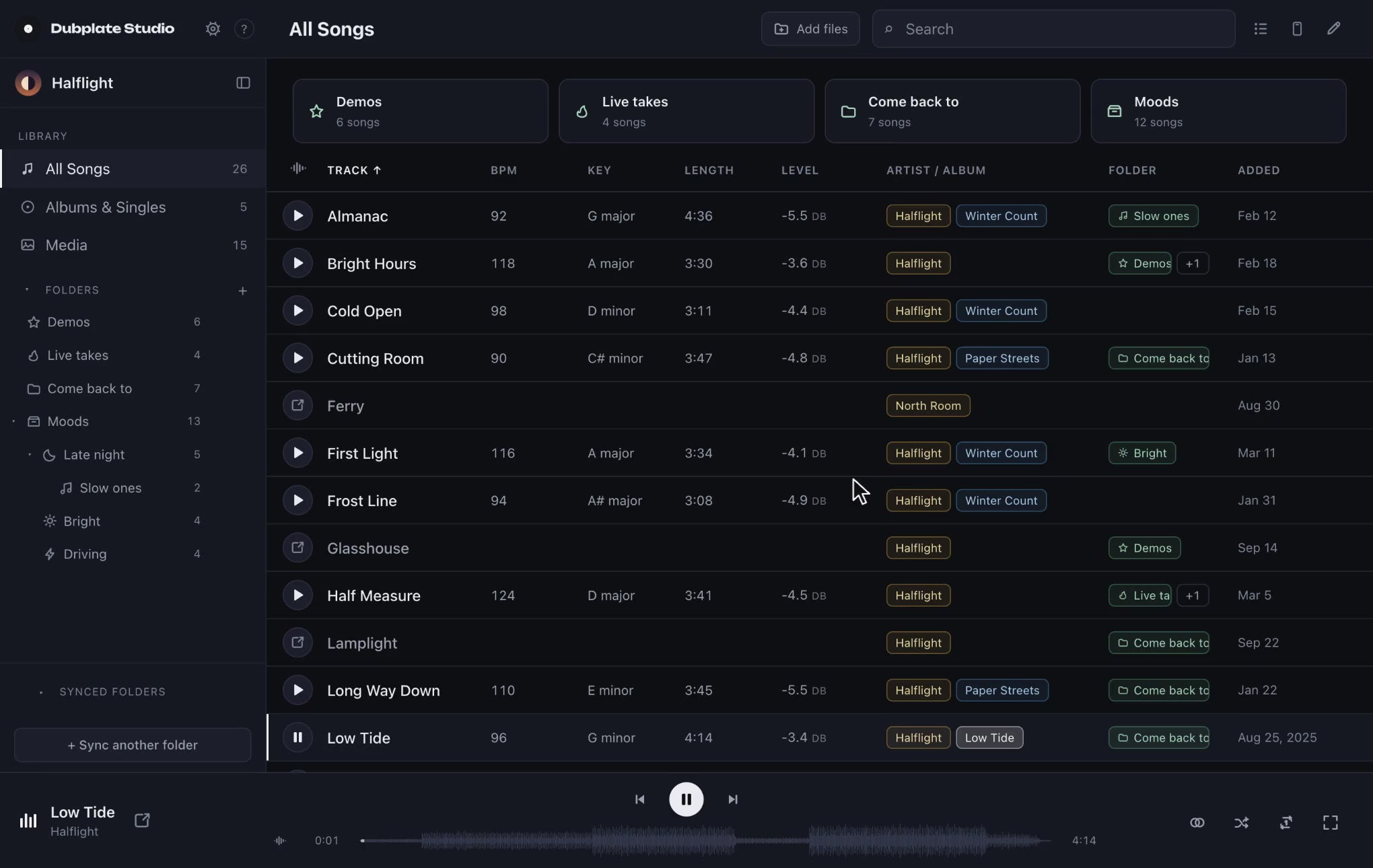
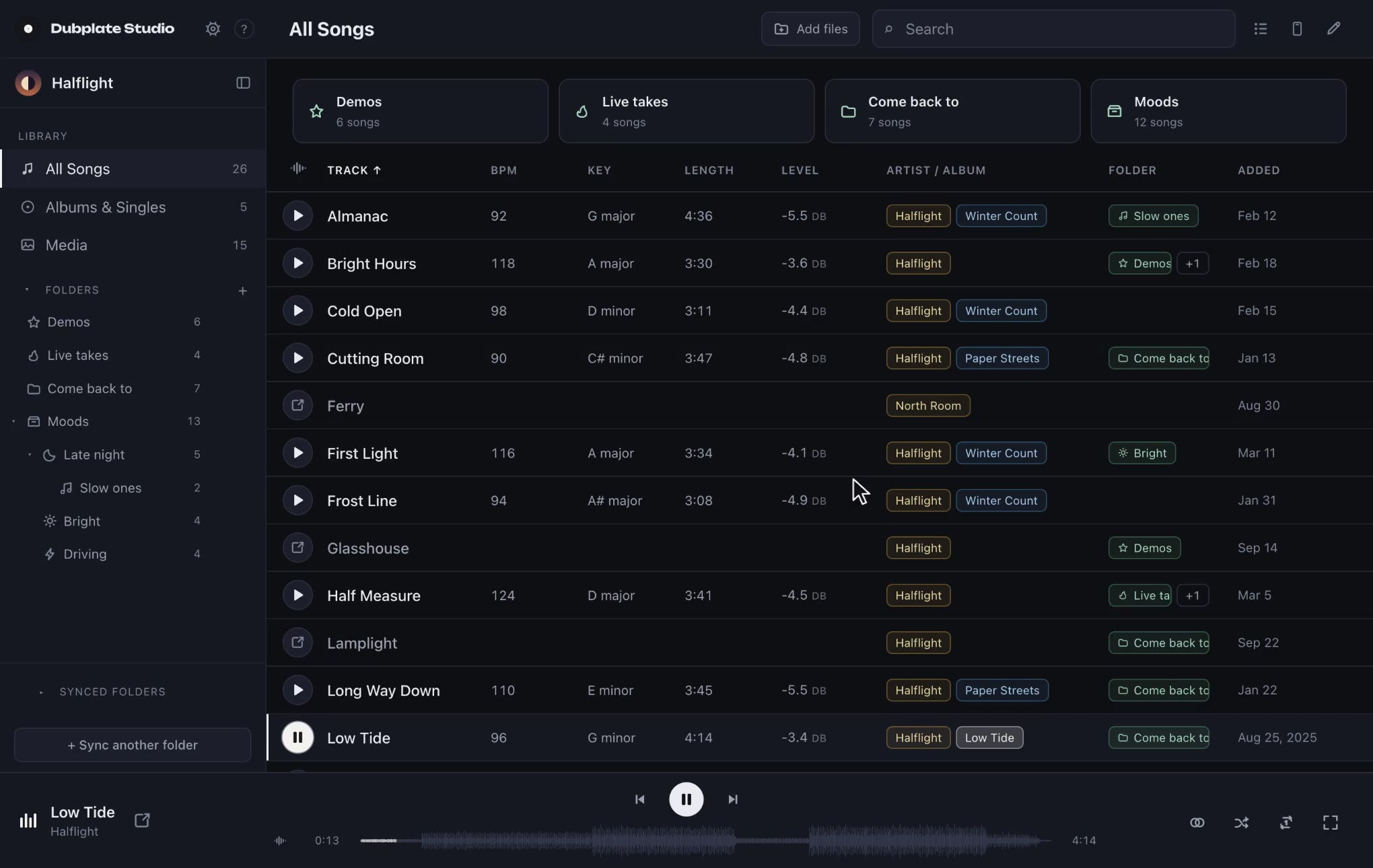
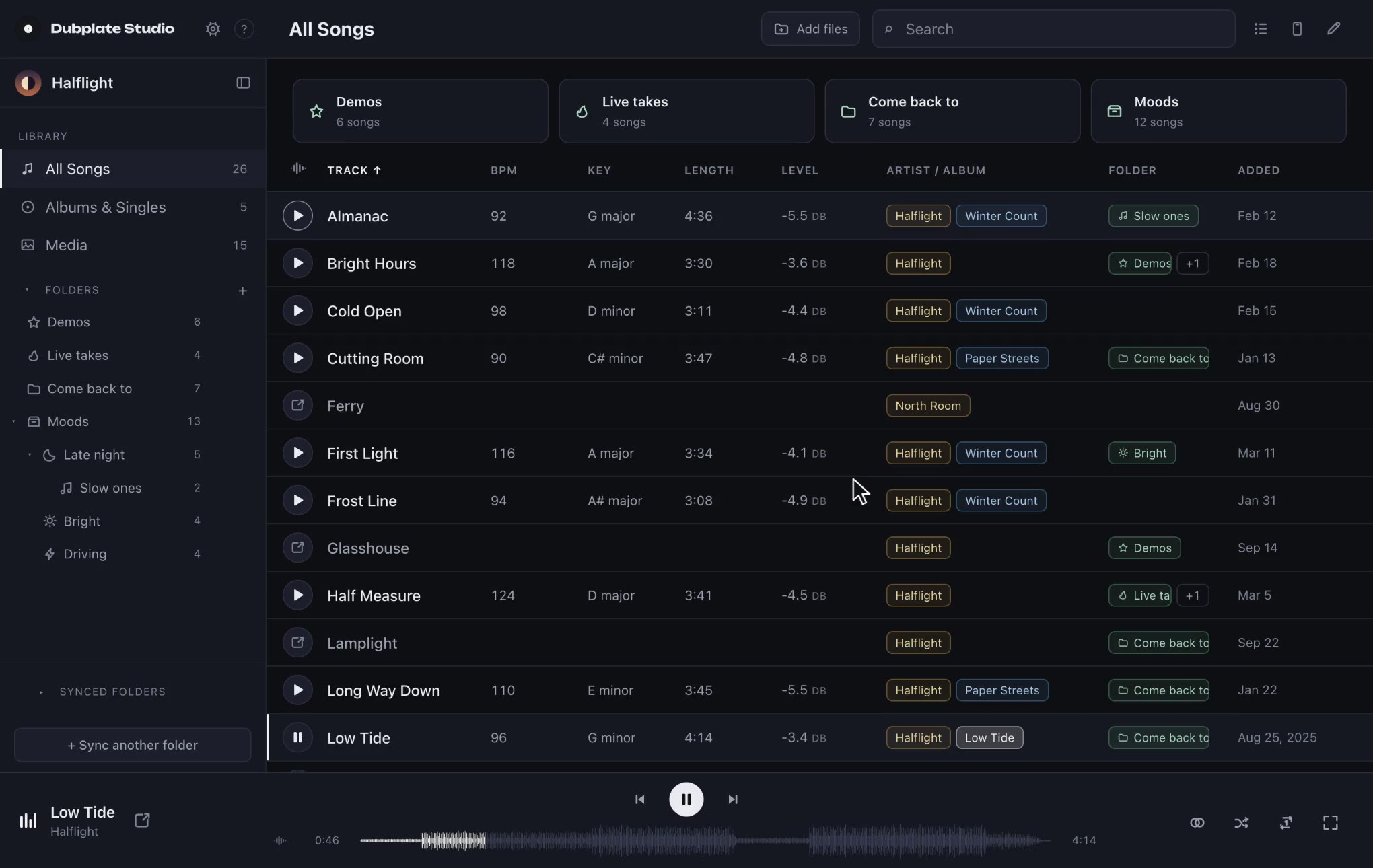
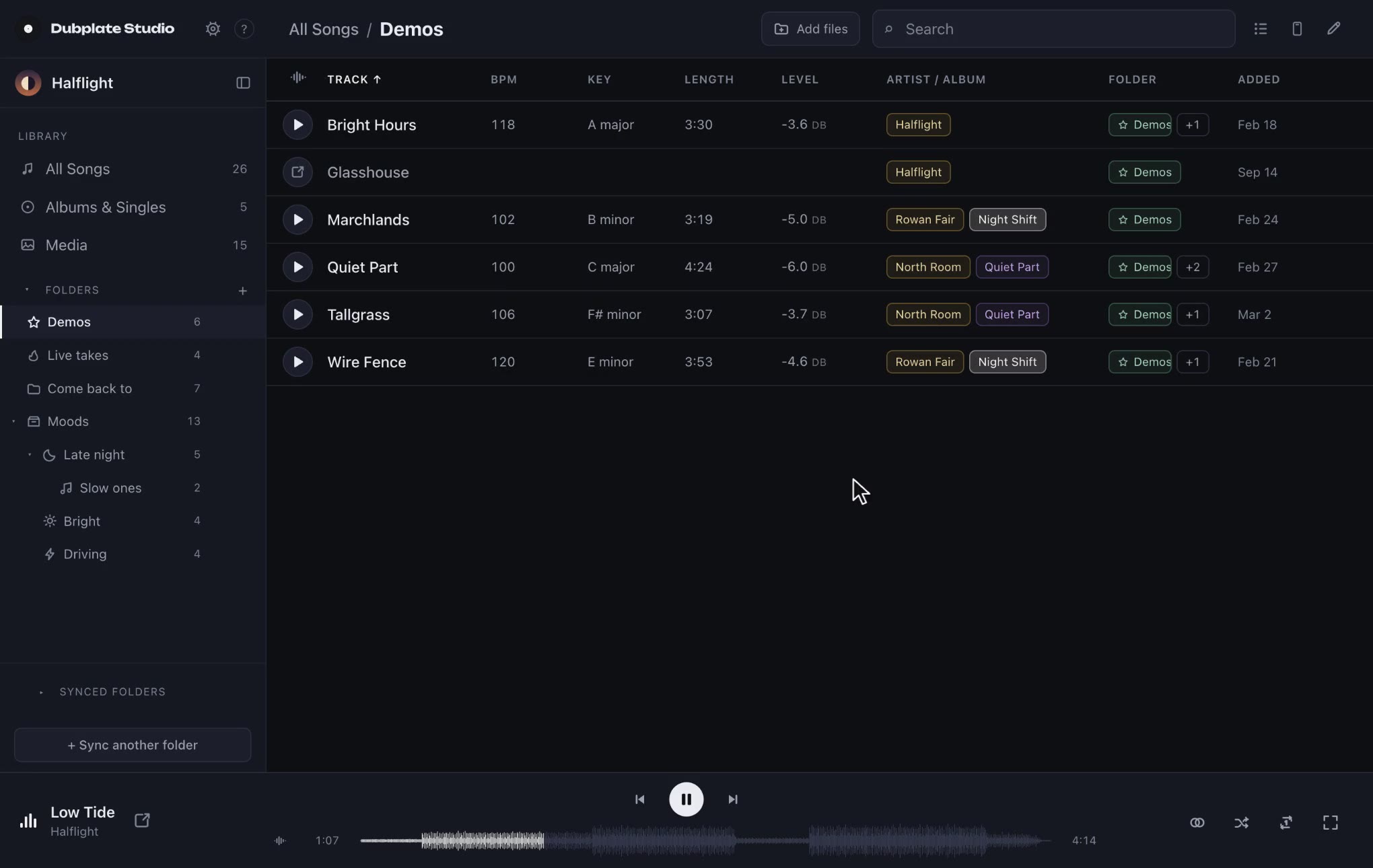
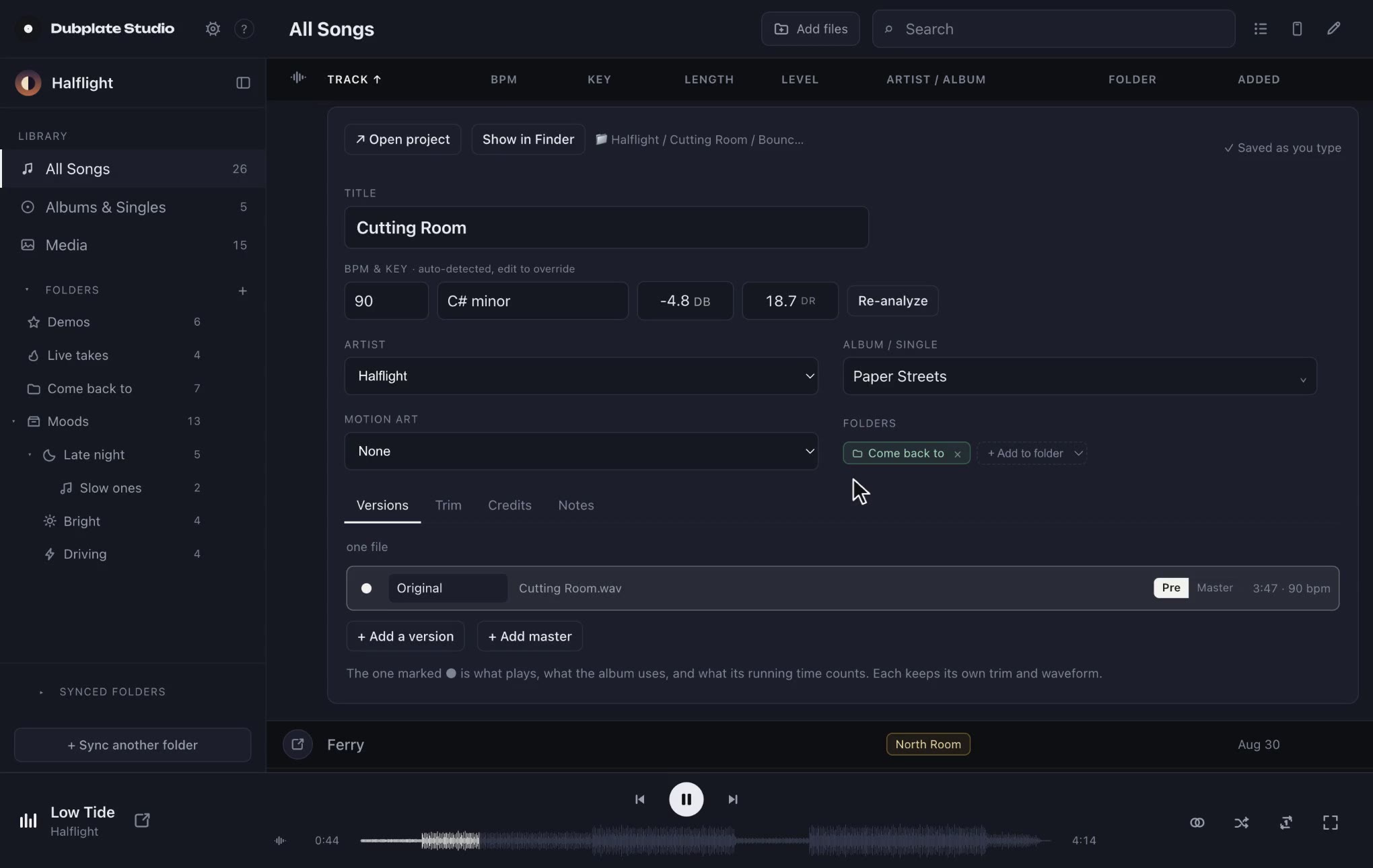
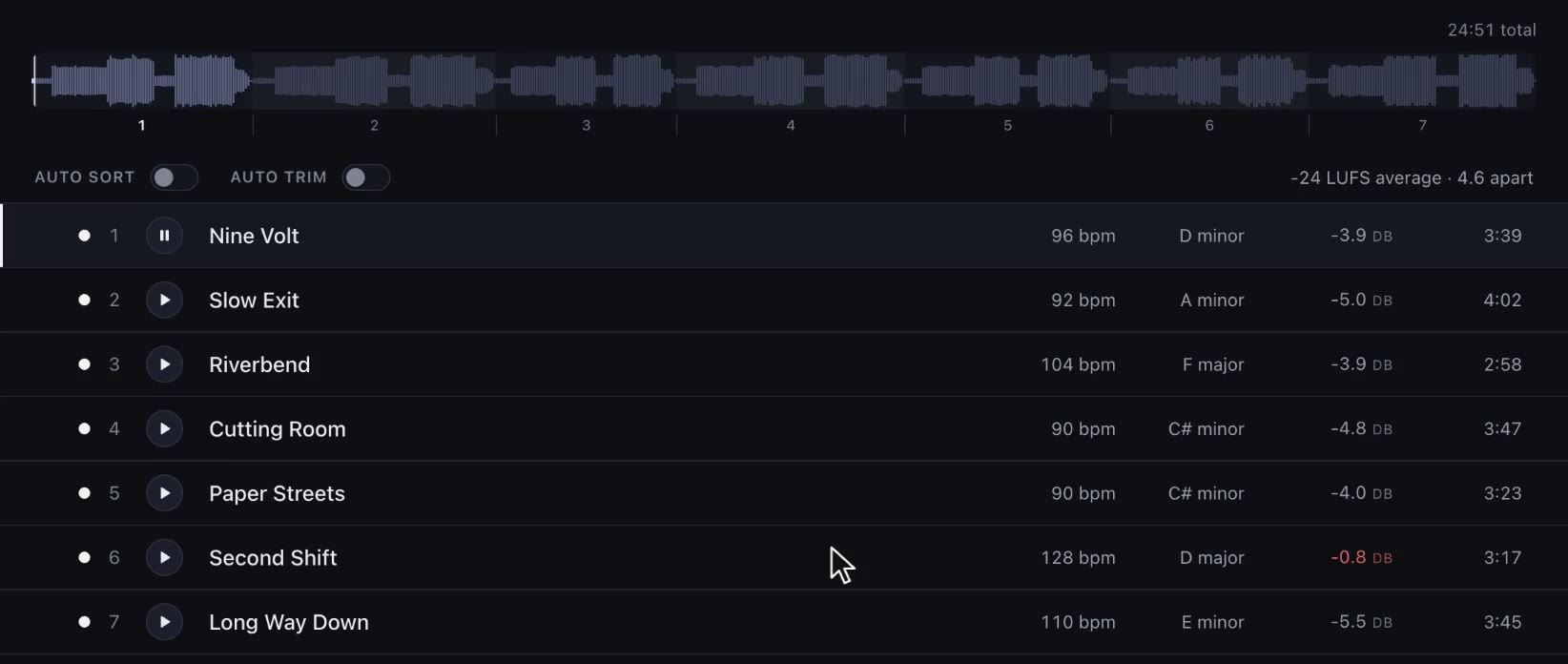
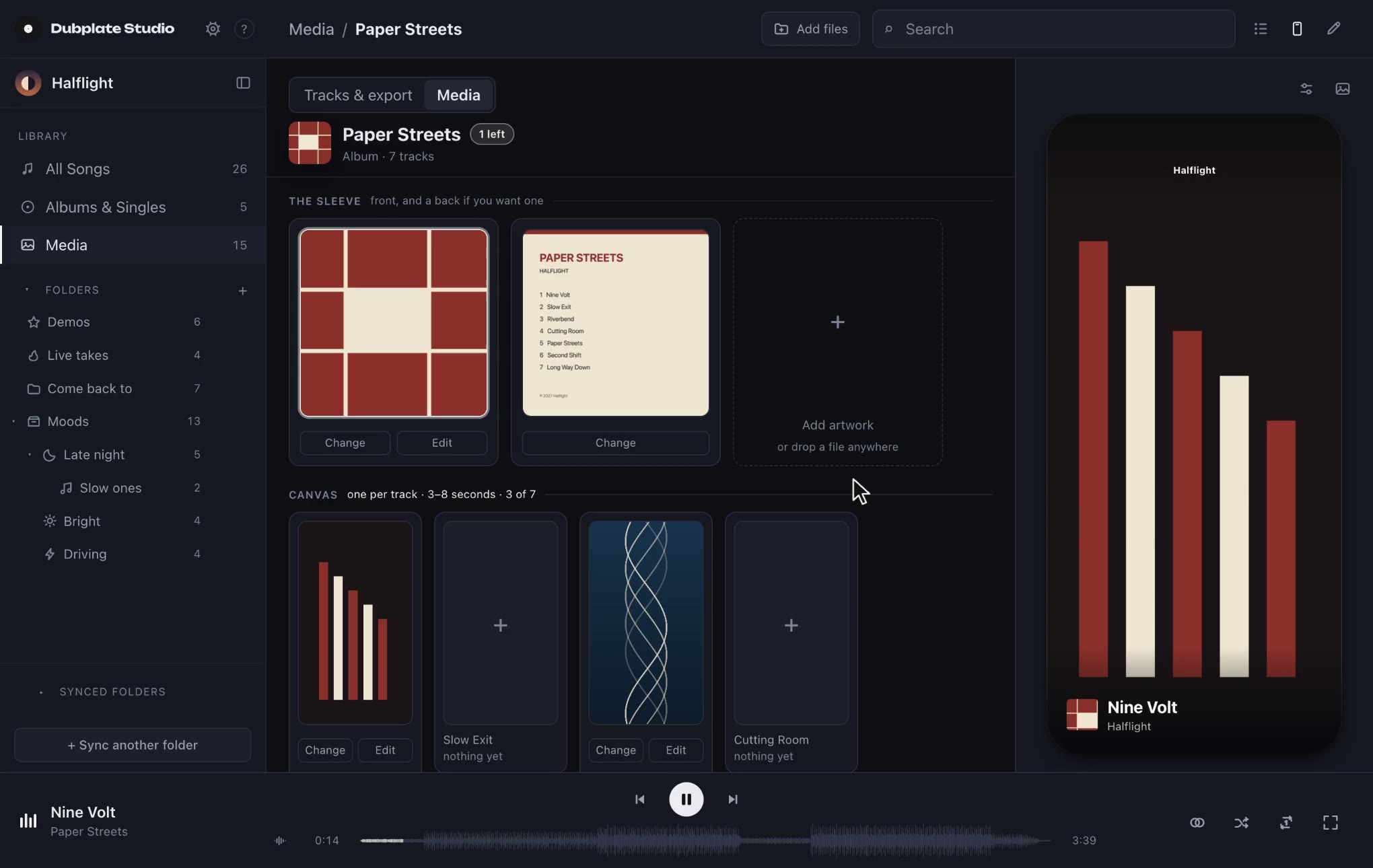
Short videos of the real app, a few seconds each, in the order you'd learn it. Click one to watch it here. More come as new features ship.
-
-
-
-
-
-
-
-


Have more questions?
Feel free to reach out. I'll get back to you as soon as I can.
If it's a bug, these make it quick to find:
- what you were doing, what you expected, and what happened instead
- your Dubplate Studio version and your macOS version
- a screenshot, if it's something you can see
Dubplate Studio doesn't send crash reports, or anything else about you, so a problem only reaches Clay House Software if you send it. There's no need to attach any music.